How do I set up our own email domain?
- Open Settings → Company → Email sending (admins, leadership and HR).
- Under Domain, type the domain to send from. Use a sub-domain such as mail.yourcompany.com, so this can't affect your company's normal email. If you type your main domain, Masthead offers Use mail.yourcompany.com instead.
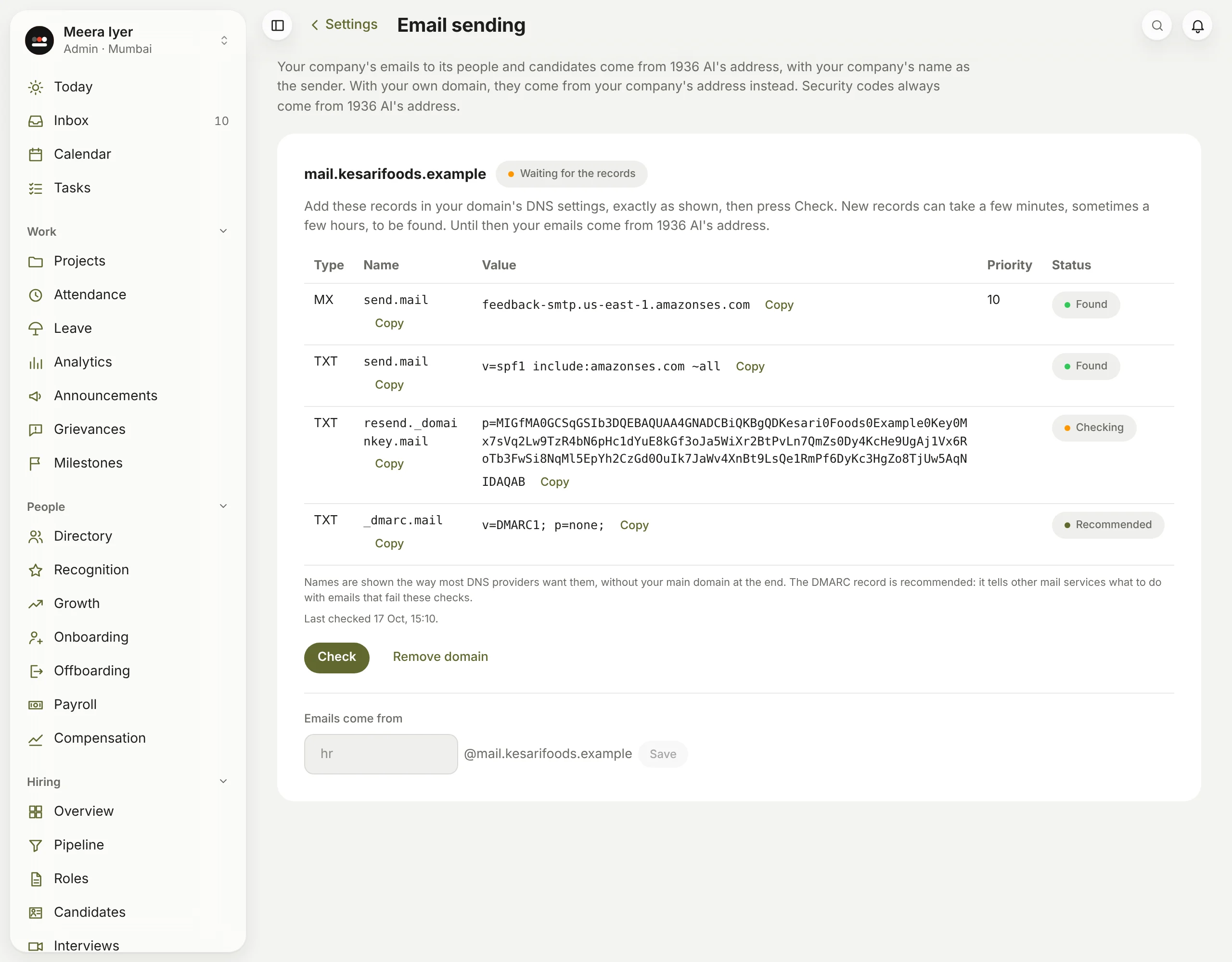
- Under Emails come from, type the part before the @, such as hr. One address does for every email, as the sender adds Careers, HR or Finance. Click Add domain.
- Masthead shows the records to add: the SPF and DKIM records that show the emails are yours, a record for emails that bounce, and a DMARC record marked Recommended, which tells other mail services what to do with emails that fail those checks. Copy each name and value with Copy into the DNS settings where your domain is managed, for example GoDaddy or Cloudflare. Names are shown without your main domain at the end, as most providers want them.
- Click Check. New records can take a few minutes, sometimes a few hours, to be found, so press Check again later if they aren't yet. Until then the page says Waiting for the records, and emails come from 1936 AI's address.
- Once they're found, the domain says In use, and your emails come from your address.
To change the address later, type the new part before the @ under Emails come from and click Save.